



The Travel Insider
Southeast Asia's first one-stop travel portal designed for UOB Cardmembers. Inspire, plan, and book your next adventure with UOB Cards.
Find out moreFeatured
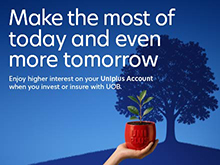
Earn 2.5% p.a. interest on your Uniplus Account when you invest or insure with us.
Now enhanced to make your money work harder as you save and invest or insure with UOB. Subject to qualifying criteria. T&Cs apply. SGD deposits are insured up to S$100k by SDIC.
Find out moreCard Privileges
Card services

Cross over to your favorite deals in JB with UOB Cards
Tap your way to 0% FX fees, cashback on MYR spend and instant savings with UNI$ redemption.
Find out moreBorrow services

Balance Transfer
Get instant cash at 0% interest and low processing fees. Choose from 3, 6 and 12-months tenor.
Find out moreFeatured Solutions

Your access to Private Bank CIO’s expertise
Invest in funds powered by Private Bank CIO – United CIO Income Fund and United CIO Growth Fund
Learn more
UOB TMRW Referral Rewards
Explore UOB's range of savings accounts and credit cards designed around your banking needs. Get started by entering your friend's referral code here. Subject to qualifying criteria. T&Cs apply.

-
you are in Personal Banking

For Individuals
Wealth BankingPrivilege BankingPrivate BankingFor Companies
GROUP WHOLESALE BANKINGGroup SME BankingForeign direct investmentUOB Asean insightsIndustry insightsSUSTAINABLE SOLUTIONSAbout UOB
UOB GroupBranches & ATMsSustainabilityTech Start-Up EcosystemUOB Subsidiaries
UOB asset managementUnited overseas InsuranceUOB travel plannersUOB Venture managementUOB Global capital

Username and Password
Learn how to manage your digital banking login details, update your contact information, and set up biometric login on UOB TMRW.
How to register for digital banking and retrieve login credentials
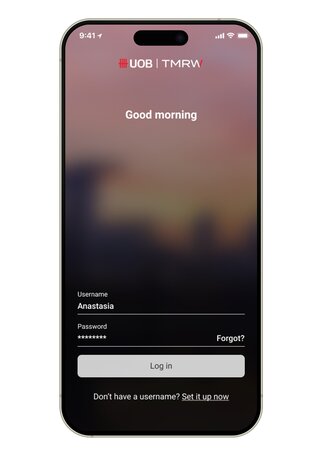
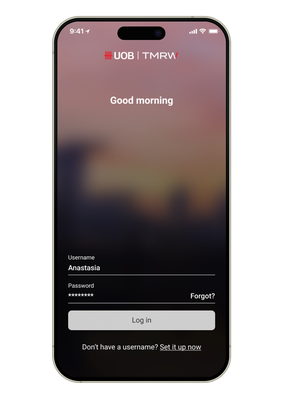
Step 1 : Tap on ‘No username. Create one now’ to register for a digital banking account. Tap ‘Forgot?’ to reset your password.
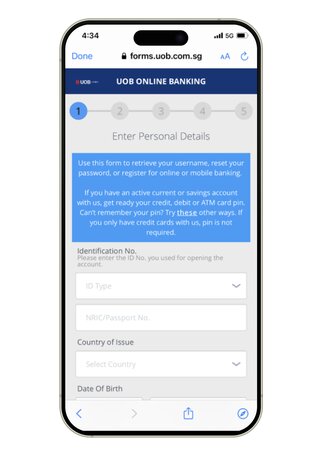
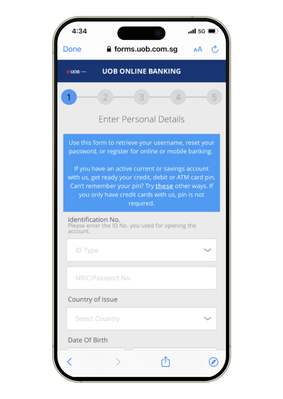
Step 2 : Enter the required information, click Next. Confirm mobile number and enter SMS OTP to verify.
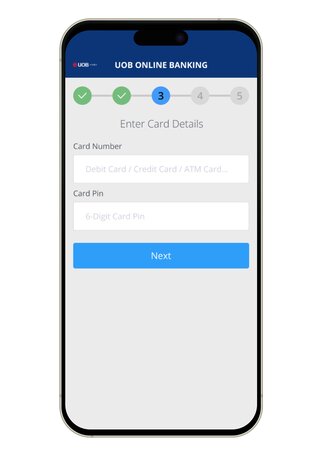
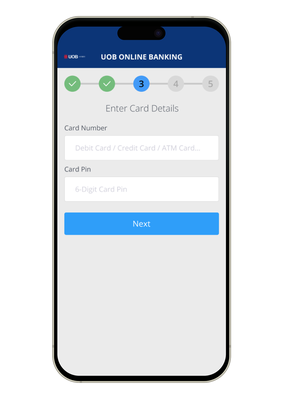
Step 3 : Enter the card details that are mailed to you.
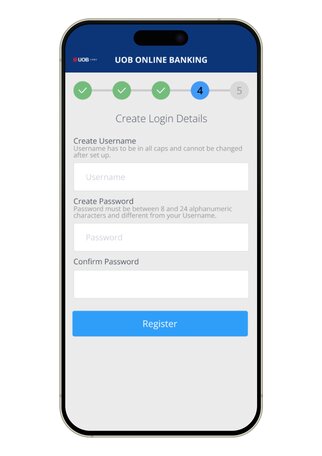
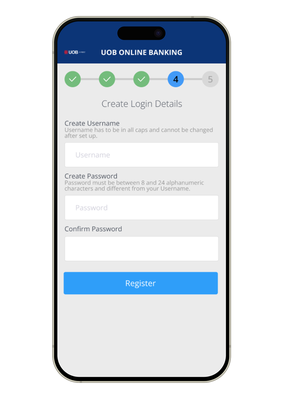
Step 4A : For new customers: Create username and password.
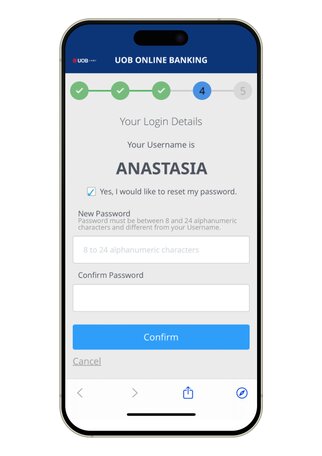
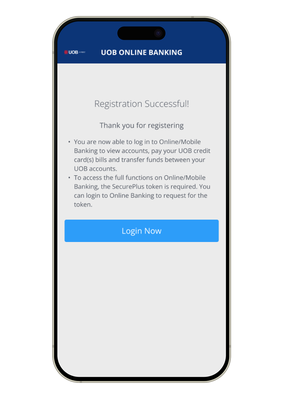
Step 4B : For existing customers: Retrieve username and reset password.
How to set up UOB TMRW
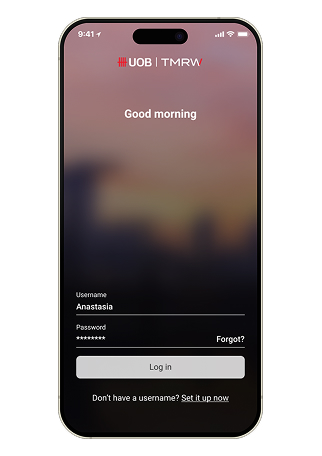
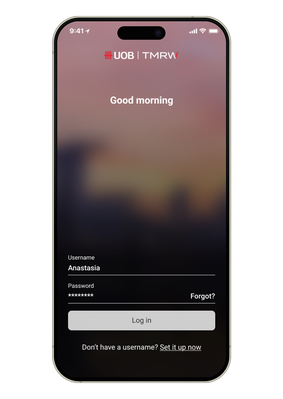
Step 1A : Tap on "Set it up now".
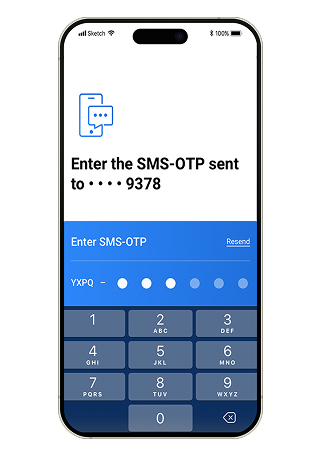
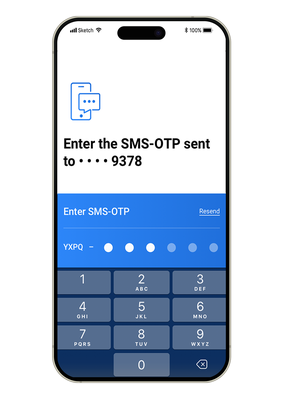
Step 1B : Key in the SMS-OTP sent to your mobile number.
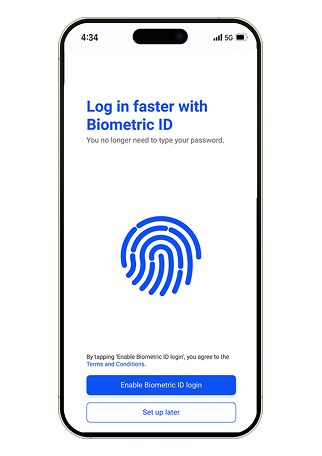
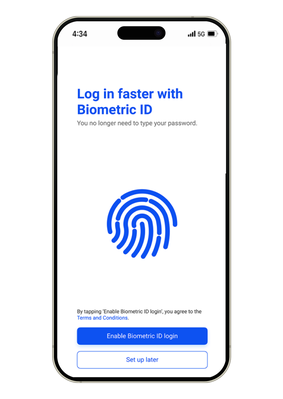
Step 2A : Set up Fingerprint for faster log-in.
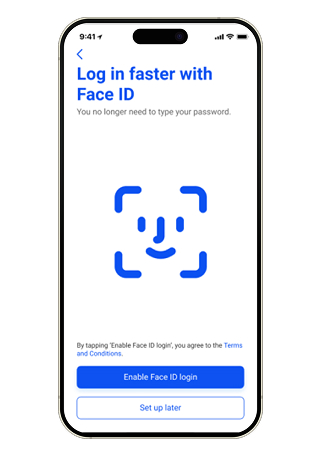
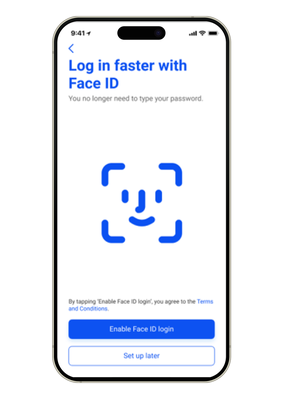
Step 2B : Enable Face ID login.
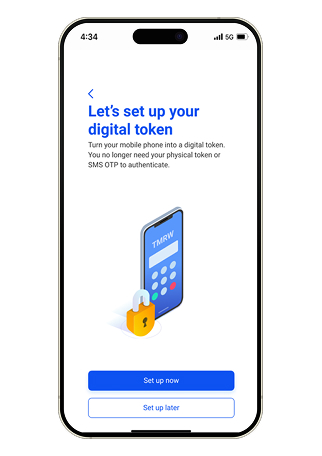
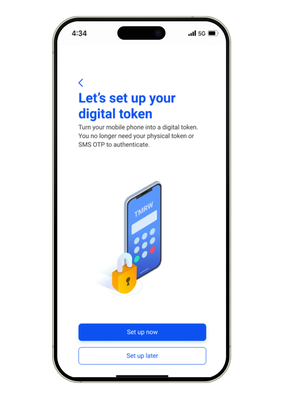
Step 3 : Set up your digital token.
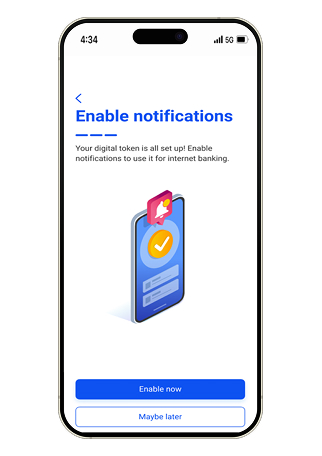
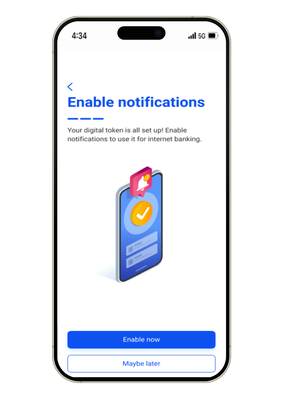
Step 4 : Your digital token is all set up. Next, enable your notifications.
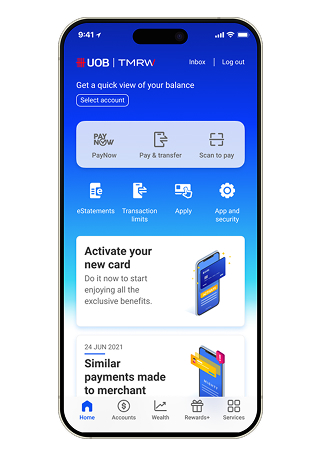
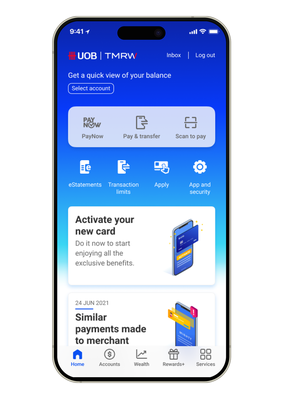
Step 5 : Start using UOB TMRW now.
How to change your email address
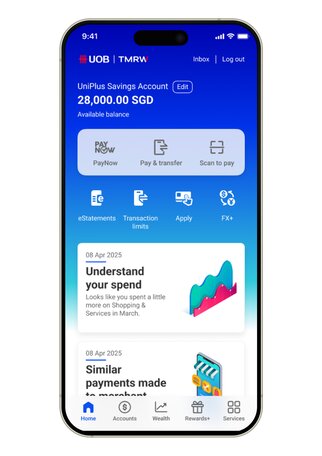
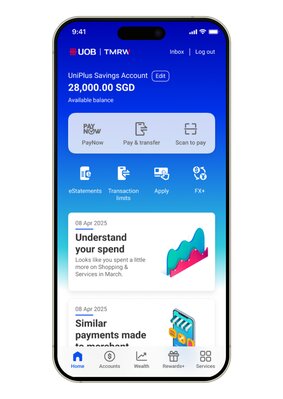
Step 1 : Login to UOB TMRW and tap on “Services“ tab.
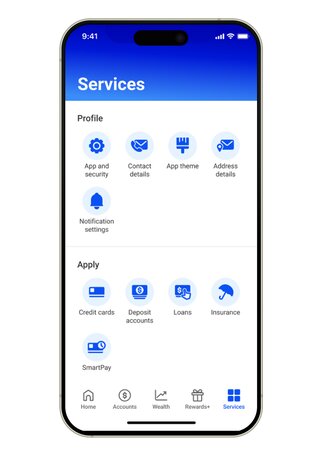
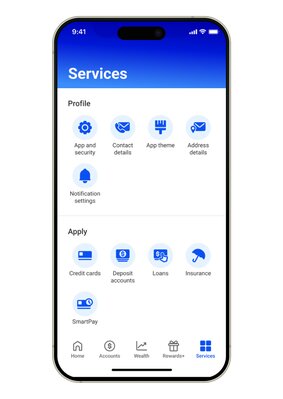
Step 2 : Under 'Profile', select "Contact Details".
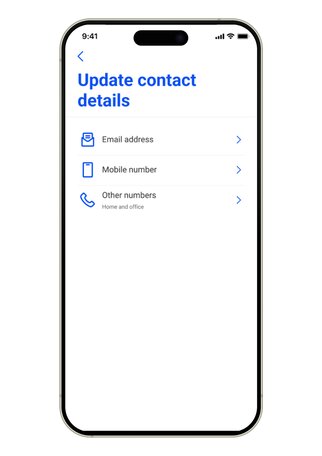
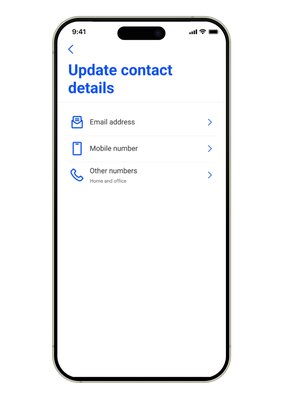
Step 3 : Select "Email address"
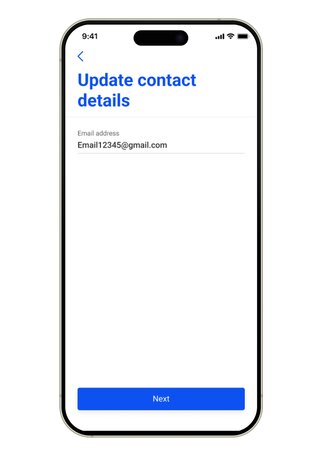
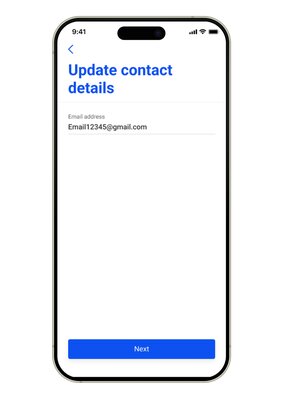
Step 4 : Enter your new email address and tap "Next" to proceed.
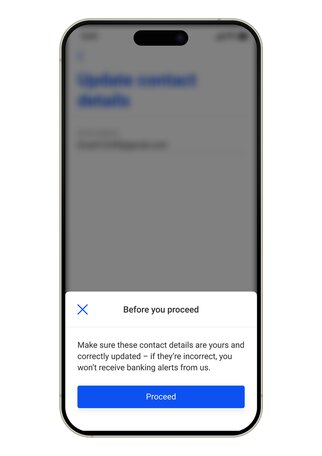
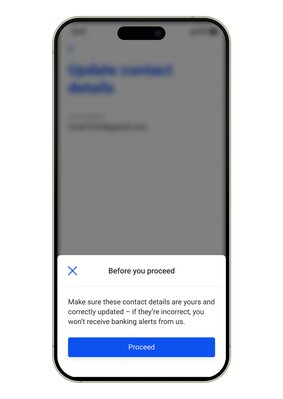
Step 5 : A warning message is prompted to confirm that the contact details are correctly updated to receive important banking alerts. Tap “Proceed”.
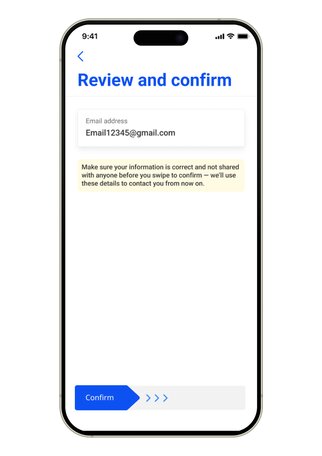
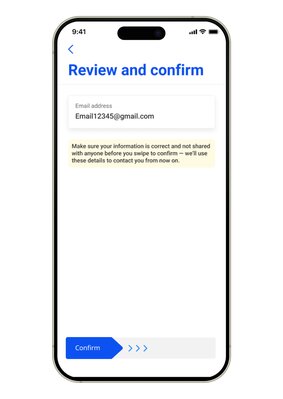
Step 6: Review the details and swipe right to Confirm.
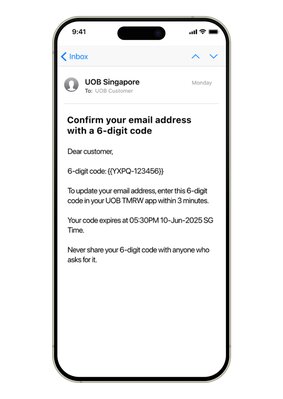
Step 7A : As an added layer of security, a 6-digit-code will be sent to your new email address.
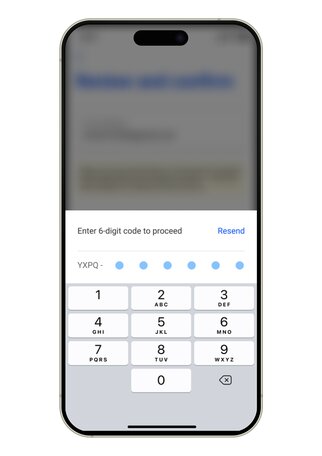
Step 7B : You will be required to enter the 6-digit-code to proceed.
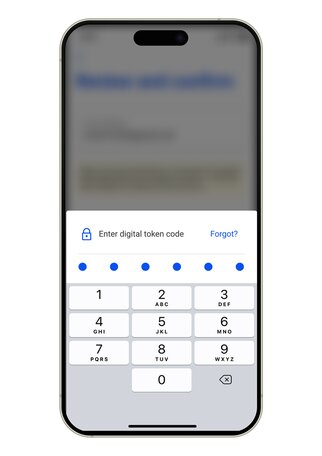
Step 8: Next, please enter your digital token code.
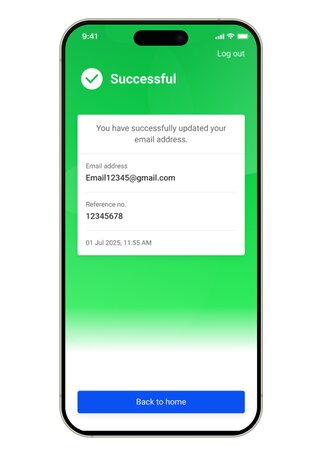
Step 9: You have successfully updated your email address.
Note: The above guide is for UOB TMRW app version 18.16.4 and above.
How to change your mobile number
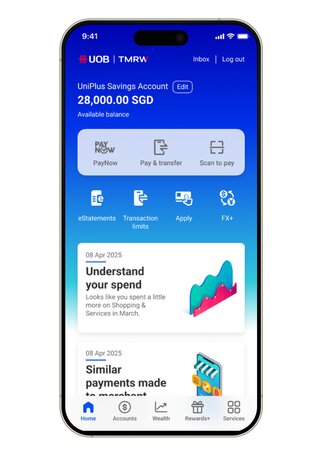
Step 1 : Login to UOB TMRW and tap on “Services“ tab.
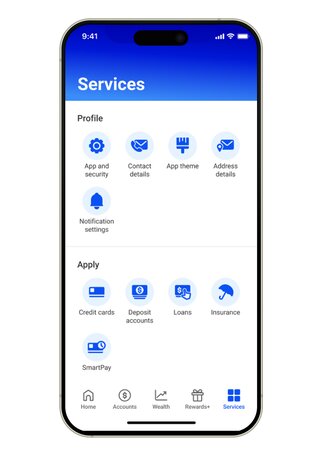
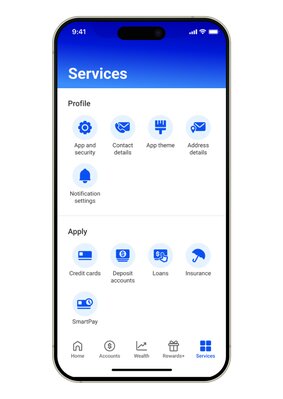
Step 2 : Under Profile, select "Contact Details".
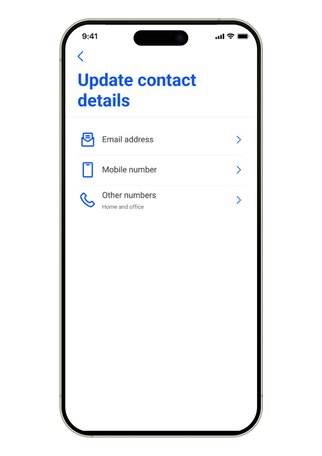
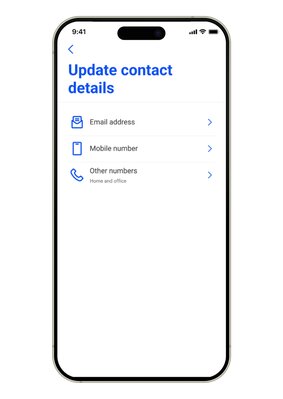
Step 3 : Select "Mobile number".
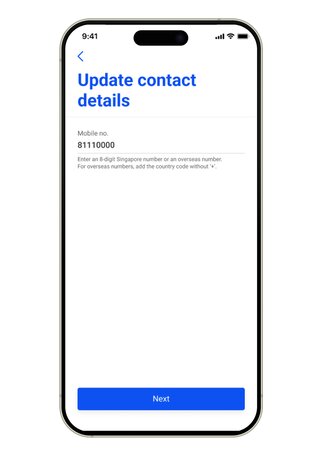
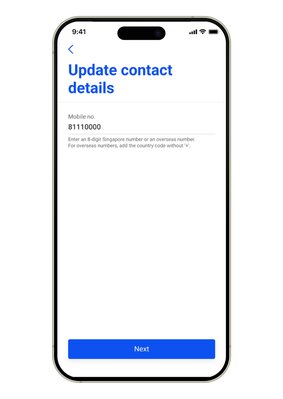
Step 4 : Enter your new mobile number and tap "Next" to proceed.
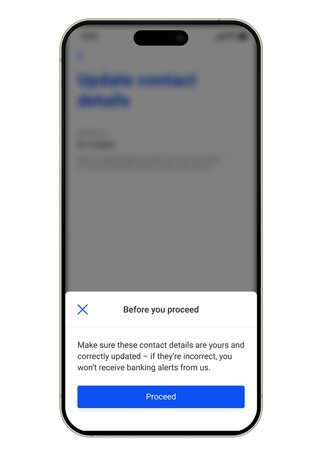
Step 5 : A warning message is prompted to confirm that the contact details are correctly updated to receive important banking alerts. Tap “Proceed”.
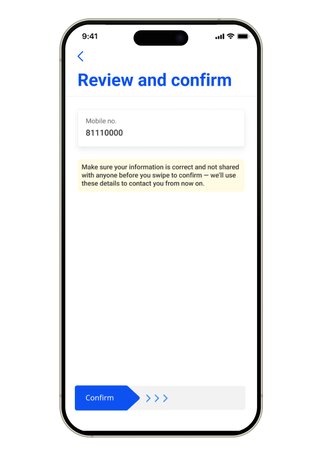
Step 6: Review the details and swipe right to Confirm.
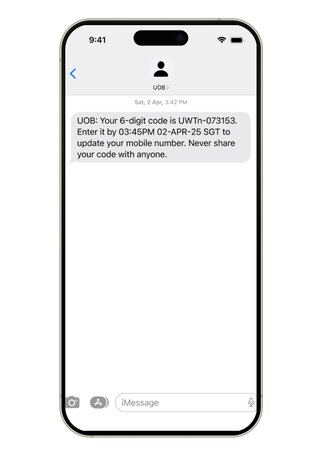
Step 7A : As an added layer of security, a 6-digit-code will be sent to your new mobile number.
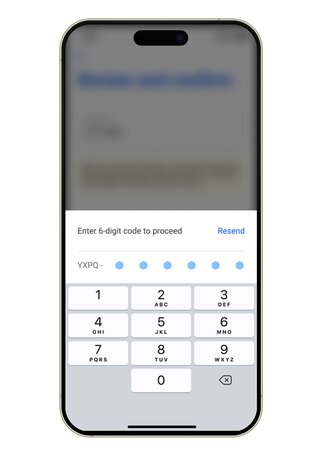
Step 7B : You will be required to enter the 6-digit-code to proceed.
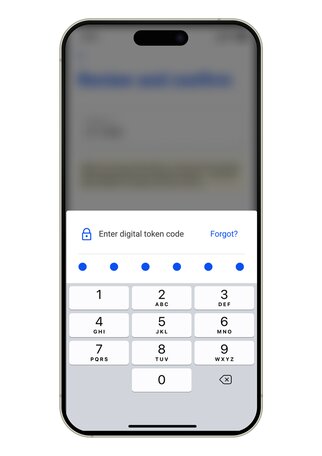
Step 8: Next, please enter your digital token code.
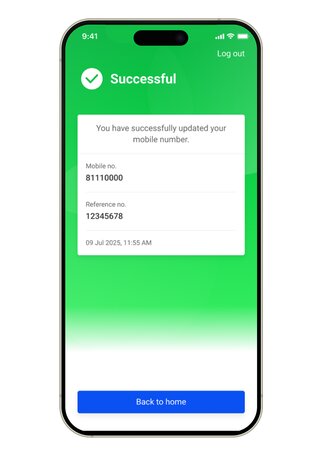
Step 9: You have successfully updated your mobile number.
Note: The above guide is for UOB TMRW app version 18.16.4 and above.
How to change your address
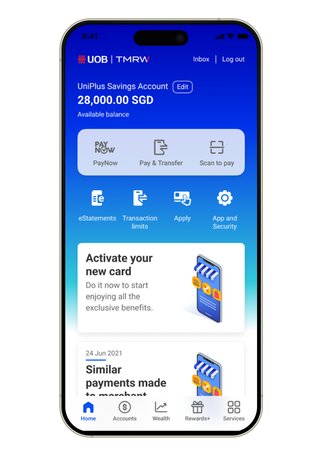
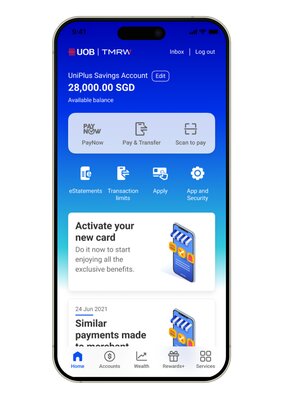
Step 1 : Login to UOB TMRW and tap on “Services“ tab.
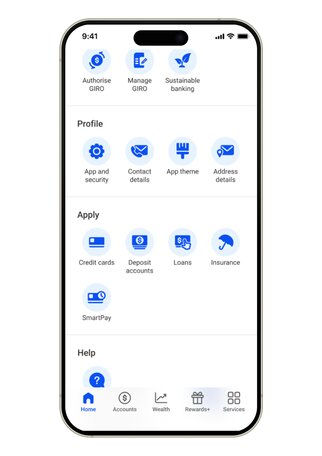
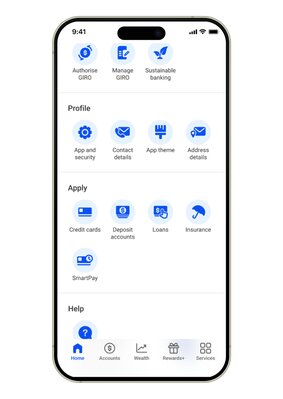
Step 2 : Under Profile, select “Address details”.
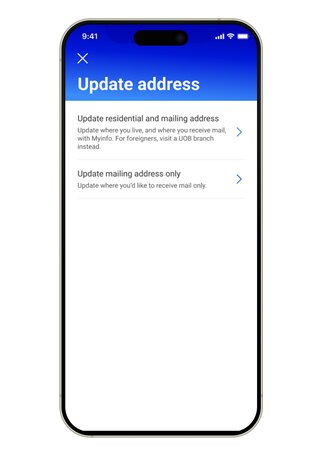
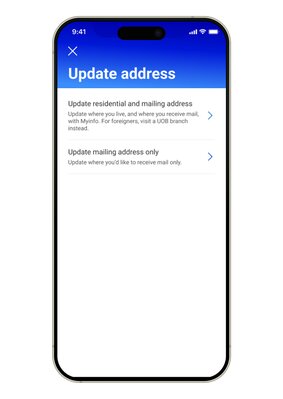
Step 3 : Menu will be displayed with 2 options: Update residential and mailing address OR Update mailing address only. To update residential address, select “Update residential and mailing address”.
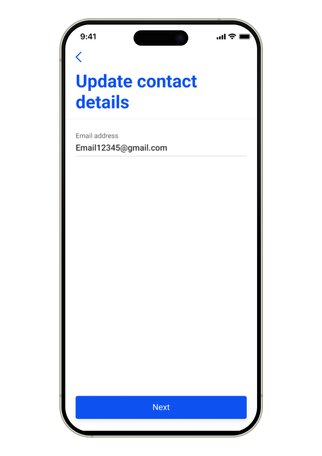
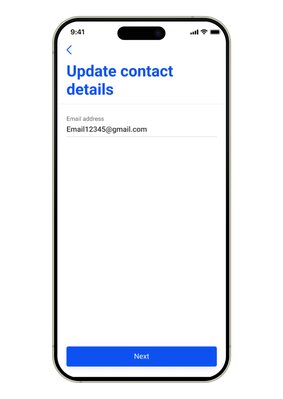
Step 4 : This will display your current residential address (if any). Continue by tapping on ‘Update address with Myinfo’.
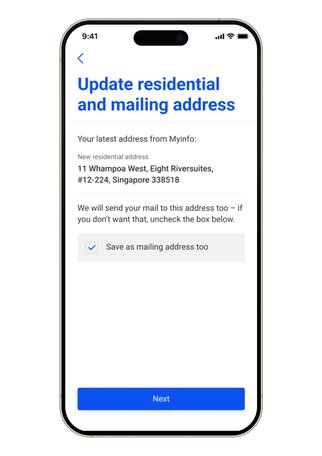
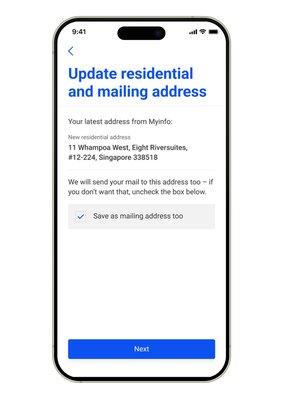
Step 5 : Your registered address with Myinfo will then be retrieved and displayed By default, the checkbox to update the same address as Mailing address will be checked. If you do not wish to update your mailing address, please uncheck the box. Tap on "Next" to proceed.
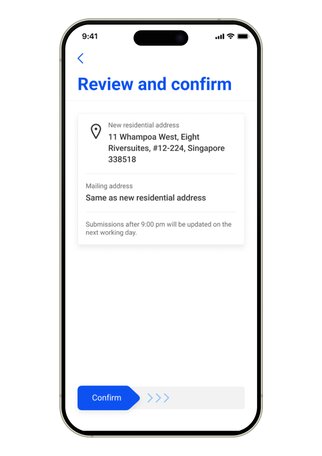
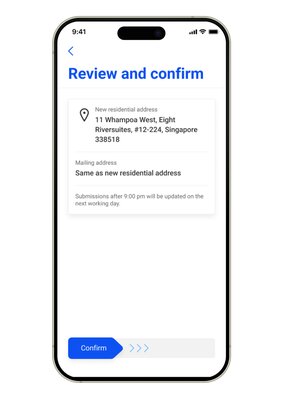
Step 6 : Review the details and swipe right to confirm.
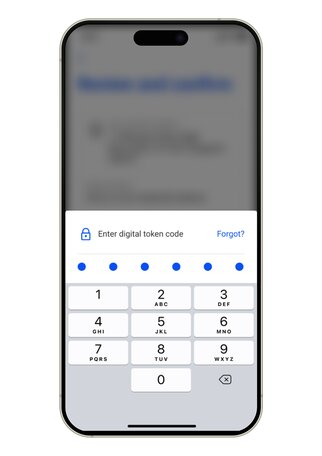
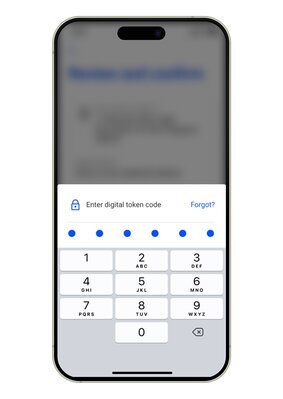
Step 7 : As an added layer of security, you will be required to enter your digital token code to proceed.
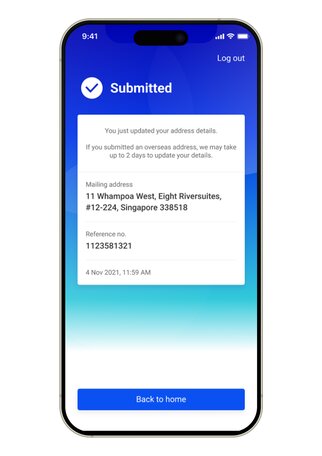
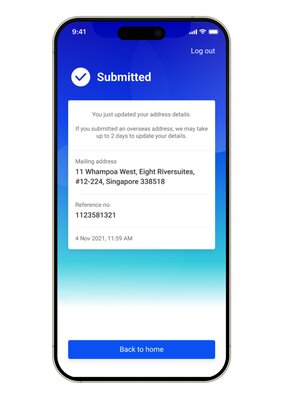
Step 8 : You have successfully updated your address.

We use cookies to improve and customise your browsing experience. You are deemed to have consented to our cookies policy if you continue browsing our site.